

⚡ Quick Reference: Choose Your Method
What Is Git Deployment?
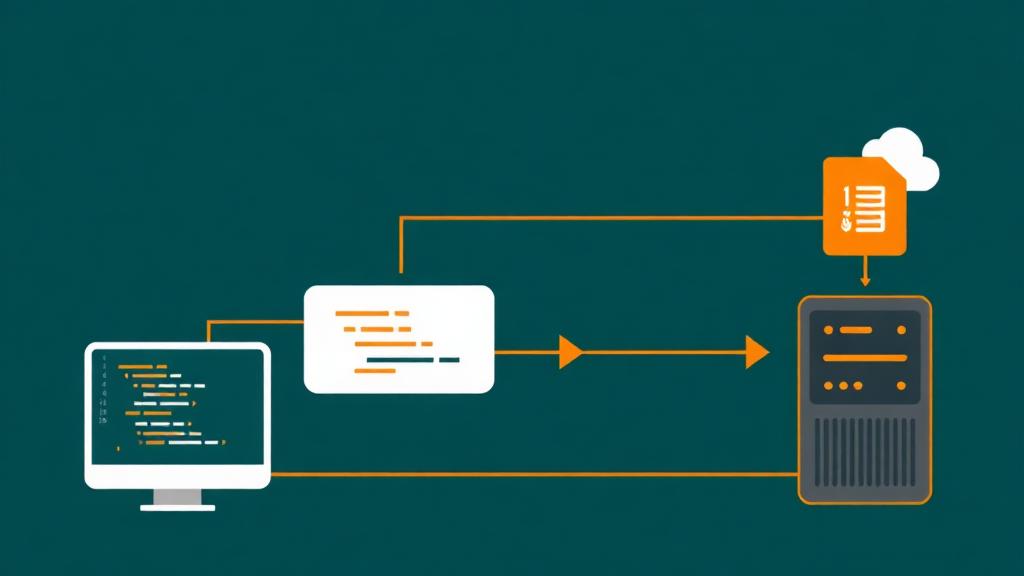
Git deployment means using Git—the version control system—as the mechanism to push your code from your local machine (or CI server) to your production hosting. Instead of manually uploading files via FTP or a file manager, you run git push and your server automatically receives the new code, runs any build steps, and updates the live site.
🔄 Deployment Flow
Develop features, fix bugs, update content on your local machine. Test locally with a dev server.
git add . && git commit -m 'Add new feature'. Each commit is a snapshot of your entire codebase with a message explaining what changed.
git push production main. This sends your commits to the server (or platform). The push triggers the deployment process.
A post-receive hook, CI pipeline, or platform webhook detects the push and begins the deployment process.
Run build steps (npm run build, composer install, etc.), run database migrations, restart services, clear caches. Site goes live.
Why Deploy with Git
Full Version History
Every deployment is a Git commit. See exactly what changed, when, and who made the change. Compare any two deployments with git diff. Your codebase has a complete audit trail.
Instant Rollbacks
Broken deployment? Run git revert or git reset and push. Your site reverts to the last working state in seconds—not minutes of frantic FTP uploads.
One-Command Deploy
git push production main. That's it. No file manager, no FTP client, no dragging folders. Deployments become routine, not events.
Encrypted Transfers
Git uses SSH or HTTPS for all transfers. No more FTP sending your credentials and code in plain text over the network.
Team Collaboration
Multiple developers work on branches, review code in pull requests, and merge to deploy. No more 'who uploaded what?' confusion.
Preview Deployments
Push to a staging branch to preview changes before they go live. Platforms like Vercel create unique preview URLs for every pull request.
Git Deployment Methods Compared
| Method | Setup Time | CI/CD | Rollback | Zero Downtime | Best For |
|---|---|---|---|---|---|
| git push to bare repo | 20 min | ❌ Manual | ✅ git reset | ❌ Brief downtime | VPS, full control |
| GitHub Actions → rsync | 30 min | ✅ Full pipeline | ✅ Re-run workflow | ✅ With symlinks | VPS + CI/CD |
| Vercel/Netlify | 5 min | ✅ Automatic | ✅ One click | ✅ Atomic deploys | Static/JAMstack |
| Cloudflare Pages | 5 min | ✅ Automatic | ✅ One click | ✅ Edge deploy | Static + Workers |
| GitLab CI/CD | 1-2 hrs | ✅ Built-in | ✅ Pipeline replay | ✅ Configurable | Self-hosted, enterprise |
| Coolify / CapRover | 1-2 hrs | ✅ Built-in | ✅ Docker rollback | ✅ Container swap | Self-hosted PaaS |
| DeployHQ / Buddy | 15 min | ✅ Visual pipeline | ✅ One click | ❌ Varies | Teams, GUI preference |
Git Push to VPS (Step-by-Step)
This is the most flexible approach: set up a bare Git repository on your VPS that automatically deploys when you push. Works with any hosting provider that gives you SSH access.
Step 1: Set Up SSH Keys
# Generate SSH key (if you don't have one)
ssh-keygen -t ed25519 -C "your@email.com"

# Copy your public key to the server
ssh-copy-id user@your-server-ip

# Test connection (should log in without password)
ssh user@your-server-ip
Step 2: Create Bare Repository on Server
# Create the bare repository
mkdir -p /home/deploy/repos/mysite.git
cd /home/deploy/repos/mysite.git
git init --bare

# Create the web root (where your site lives)
mkdir -p /var/www/mysite
Step 3: Create Post-Receive Hook
#!/bin/bash
set -e

TARGET="/var/www/mysite"
GIT_DIR="/home/deploy/repos/mysite.git"
BRANCH="main"

while read oldrev newrev ref
do
    if [ "$ref" = "refs/heads/$BRANCH" ]; then
        echo "🚀 Deploying $BRANCH to $TARGET..."

        # Checkout the latest code
        git --work-tree=$TARGET --git-dir=$GIT_DIR checkout -f $BRANCH

        # Navigate to project directory
        cd $TARGET

        # Install dependencies (Node.js example)
        npm ci --production

        # Build the project
        npm run build

        # Restart the application (PM2 example)
        pm2 restart mysite --update-env

        echo "✅ Deployment complete!"
    fi
donechmod +x /home/deploy/repos/mysite.git/hooks/post-receive
Step 4: Add Remote & Deploy
# Add the production remote
git remote add production user@your-server-ip:/home/deploy/repos/mysite.git

# Deploy!
git push production main

# You'll see the hook output in your terminal:
# 🚀 Deploying main to /var/www/mysite...
# ✅ Deployment complete!
GitHub Actions CI/CD
GitHub Actions provides free CI/CD (2,000 minutes/month on free plan). This workflow runs tests, builds your project, and deploys to your VPS via rsync—only if tests pass.
name: Deploy to Production

on:
  push:
    branches: [main]

jobs:
  test:
    runs-on: ubuntu-latest
    steps:
      - uses: actions/checkout@v4
      - uses: actions/setup-node@v4
        with:
          node-version: 20
          cache: 'npm'
      - run: npm ci
      - run: npm run lint
      - run: npm test

  deploy:
    needs: test  # Only deploy if tests pass
    runs-on: ubuntu-latest
    steps:
      - uses: actions/checkout@v4
      - uses: actions/setup-node@v4
        with:
          node-version: 20
          cache: 'npm'
      - run: npm ci
      - run: npm run build

      - name: Deploy via rsync
        uses: burnett01/rsync-deployments@6.0.0
        with:
          switches: -avzr --delete
          path: dist/
          remote_path: /var/www/mysite/
          remote_host: ${{ secrets.SERVER_IP }}
          remote_user: deploy
          remote_key: ${{ secrets.SSH_PRIVATE_KEY }}
🔑 Setting Up Secrets
In your GitHub repo: Settings → Secrets and variables → Actions → New repository secret. Add SERVER_IP (your server's IP) and SSH_PRIVATE_KEY (your private key contents). Never commit SSH keys to your repo.
Platform Git Deploy (Vercel, Netlify, Cloudflare Pages)
The simplest approach: connect your GitHub/GitLab repo to a platform and every push triggers an automatic deployment. Zero server management.
Vercel
100GB bandwidth, 6,000 build mins/moSetup: Import repo → auto-detect framework → deploy. That's it.
Preview deploys for every PR, serverless functions, edge functions, analytics, instant rollback, custom domains + SSL. Best for Next.js (built by same team).
Netlify
100GB bandwidth, 300 build mins/moSetup: New site from Git → pick repo → set build command → deploy.
Preview deploys, serverless functions, forms, identity (auth), split testing, custom domains + SSL, edge functions.
Cloudflare Pages
Unlimited bandwidth, 500 builds/moSetup: Connect GitHub → select repo → configure build → deploy.
Unlimited bandwidth (free), Workers integration, global edge network, preview deploys, custom domains + SSL. Fastest edge delivery.
Railway
$5 free credit/mo, then pay-as-you-goSetup: New project from GitHub → auto-detect → deploy. Supports backends.
Full-stack support (databases, queues, cron), Docker support, private networking, logs, metrics. Not just static sites.
Hosting Providers with Git Deploy
| Provider | Git Support | SSH Access | CI/CD | Price |
|---|---|---|---|---|
| Vercel | ✅ Native | N/A | ✅ Built-in | Free-$20/mo |
| Netlify | ✅ Native | N/A | ✅ Built-in | Free-$19/mo |
| Cloudflare Pages | ✅ Native | N/A | ✅ Built-in | Free |
| DigitalOcean App Platform | ✅ Native | ✅ (Droplets) | ✅ Built-in | $5+/mo |
| Railway | ✅ Native | ✅ | ✅ Built-in | $5 credit free |
| SiteGround | ✅ Pre-installed | ✅ | ❌ Manual hooks | $2.99+/mo |
| Cloudways | ✅ Via SSH | ✅ | ❌ Manual hooks | $14+/mo |
| DigitalOcean Droplet | ✅ Install yourself | ✅ Full root | ❌ GitHub Actions | $6+/mo |
| Hetzner VPS | ✅ Install yourself | ✅ Full root | ❌ GitHub Actions | €3.79+/mo |
| Hostinger (shared) | ❌ No SSH (basic) | ❌ (premium only) | ❌ | $2.99+/mo |
Branching Strategies for Deployment
Simple (main only)
main → productionAll development happens on main. Every push to main deploys to production. No branches, no PRs. Best for solo developers on small projects. Risk: broken code goes live immediately.
Best for: Solo devs, personal sites, prototypes
main + staging
main → staging → productionDevelop on main, push to staging branch to preview, merge to production branch to deploy. Two environments: staging.yoursite.com and yoursite.com.
Best for: Small teams, client sites
GitHub Flow
feature-branch → PR → main (deploy)Create feature branches from main. Open PR for code review. Merge to main triggers deploy. Simple, effective, widely used. Preview deploys for each PR (Vercel/Netlify).
Best for: Most teams, SaaS products
Git Flow
feature → develop → release → mainmain (production), develop (integration), feature branches, release branches, hotfix branches. More structure, more overhead. Useful for software with versioned releases.
Best for: Large teams, versioned software
Trunk-Based Development
short-lived branches → main (deploy continuously)Everyone commits to main (trunk) daily. Feature flags hide unfinished work. Continuous deployment on every merge. Requires strong test suite and feature flag system.
Best for: High-performing teams, continuous deployment
Rollbacks & Recovery
The ability to quickly rollback a broken deployment is one of Git deployment's greatest strengths. Here are multiple rollback methods:
git revert HEAD && git push production main
Creates a new commit that undoes the last commit. Preserves full history. Use this in shared repos where others may have pulled the bad commit.
git reset --hard HEAD~1 && git push -f production main
Rewrites history by removing the last commit entirely. Faster but destructive—only use on branches where you're the sole contributor. The -f (force push) is required.
git push production abc123:main
Push a specific known-good commit to the production branch. Useful when you need to skip multiple bad commits and go back to a specific version.
Vercel/Netlify: Dashboard → Deployments → click 'Redeploy' on any previous deployment
One-click rollback to any previous deployment. The platform keeps all build artifacts, so rollback is instant (no rebuild required).
ln -sfn /var/www/releases/20260224 /var/www/current
For zero-downtime deployments using the release directory pattern (Capistrano-style). Each deploy creates a new directory. The 'current' symlink points to the active release.
Security Best Practices
Never commit secrets
Use .gitignore to exclude .env files, private keys, API tokens, and database credentials. Use environment variables on the server. If you accidentally commit a secret, rotate it immediately—deleting the commit isn't enough (it's in Git history forever).
Use SSH keys, not passwords
SSH key authentication is stronger than passwords and can't be brute-forced. Use Ed25519 keys (ssh-keygen -t ed25519). Disable password authentication in sshd_config. Use a dedicated deploy user with limited permissions.
Create a dedicated deploy user
Don't deploy as root. Create a 'deploy' user that owns only the web root directory. Restrict SSH access to key-based auth only. Use sudo only for specific commands (service restart).
Protect the main branch
On GitHub/GitLab: require PR reviews before merging to main, require passing CI checks, prevent force pushes, require signed commits. This prevents accidental or malicious deployments.
Audit deployment logs
Log every deployment: who pushed, what commit, when, and whether it succeeded. GitHub Actions provides this automatically. For VPS deploys, add logging to your post-receive hook.
Keep .git out of the web root
If your .git directory is accessible via HTTP (yoursite.com/.git/), attackers can download your entire source code, including any secrets that were ever committed. Ensure your web server blocks access to .git.
Common Mistakes
Committing node_modules or vendor directories
→ Add node_modules/ and vendor/ to .gitignore. Run npm ci or composer install in your deployment hook/CI pipeline. Committing dependencies bloats your repo (100MB+) and causes merge conflicts.
Not testing before deploying
→ Add a CI step (GitHub Actions, GitLab CI) that runs your test suite before deployment. Even a basic linting check catches obvious errors. The 'needs: test' dependency in GitHub Actions ensures deploy only runs if tests pass.
Deploying without a build step
→ Modern frameworks (React, Next.js, Vue, Astro) require a build step. Your deployment script must run npm run build (or equivalent) and serve the output directory—not the source files.
No .gitignore from the start
→ Create .gitignore before your first commit. Include: .env, node_modules/, dist/, .DS_Store, *.log, IDE config files. Use gitignore.io to generate templates for your stack.
Force-pushing to shared branches
→ git push -f rewrites history and breaks other contributors' local repos. Only force-push to branches you own. Protect main branch from force pushes in repo settings.
Not backing up the database before deploying
→ If your deployment includes database migrations, dump the database first. Add mysqldump or pg_dump to the start of your deploy script. Migrations can fail mid-way, leaving your schema in an inconsistent state.
Frequently Asked Questions
Is FTP dead? Should I switch to Git deployment?
Can I use Git deployment with shared hosting?
How do I handle database migrations with Git deployment?
What's the difference between CI/CD and Git deployment?
How do I deploy a static site (React, Next.js, Astro) with Git?
Find Hosting with Git Deploy Support
Whether you need a VPS with SSH access or a platform with automatic Git deployment, find the right host for your workflow.
Find Developer-Friendly Hosting